Login & Activity Log
Login & Activity Log
A precise monitoring dashboard to track every login activity within the system – to ensure security, transparency, and follow-up on user behavior.
Login & Activity Log page provides complete and comprehensive view of everything related to login attempts within the system, whether successful or failed. It is the foundation stone in data protection, compliance follow-up, and detecting abnormal activities before they become a problem.
This page is not just a login list… it is a complete monitoring system within the Human Resources system.
Regular use of Login & Activity Log helps detect security problems early and protect the system.
Importance of Login Log in System
1. Enhance System Security
Through monitoring devices and failed attempts.
2. Know User Activity
Are employees using the system or not?
3. Track Unusual Logins
Such as login from new device or at unusual time.
4. Reference in Investigation and Audits
Especially in cases of:
- Data manipulation: Detect manipulation
- Unauthorized access: Prevent unauthorized access
- Evaluate employee commitment to using system: Evaluate commitment
Login & Activity Log is considered an essential tool for security and compliance within the system.
Practical Example
Management noticed an employee hasn't logged into system for two months → through login log it becomes clear:
- Last Login: 60 days ago
- Device: Desktop
- Status: Activated
- Failed Attempts: 0
Result:
Employee is not using system → must be trained or commitment followed up
This example shows how login log helps detect problems and follow up employees.
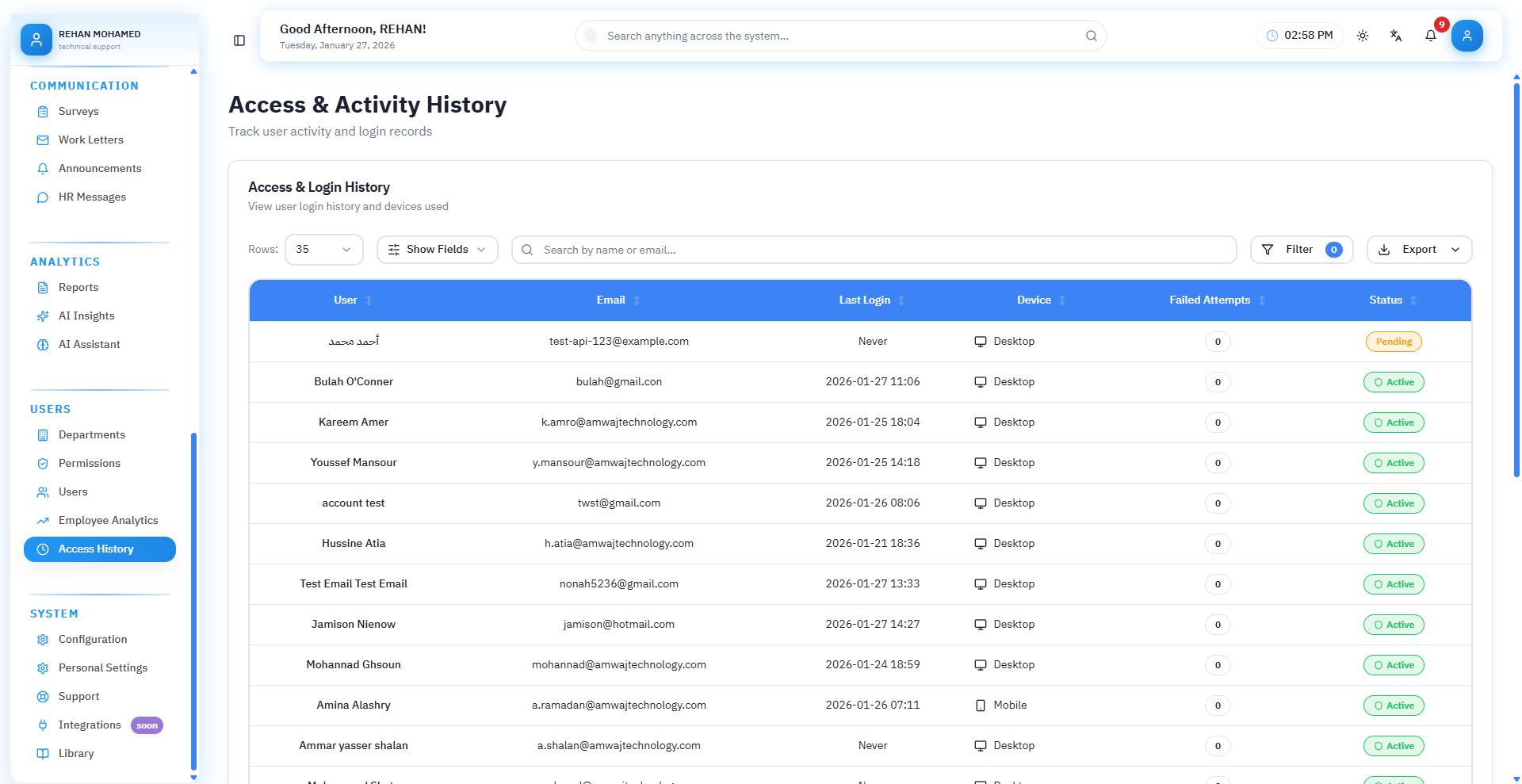
Detailed Page Elements Explanation
Page consists of clear table containing most important operational data:
1. User
Name of employee linked to record.
Facilitates knowing person responsible for behavior within system.
2. Email
Account used for login.
Helps to:
- Detect login from unofficial email: Detect problems
- Verify employee data accuracy: Verify data
- Know employees using wrong email: Correct errors
3. Last Login
Time of last time employee logged into system.
This column is very important because it reveals:
- Inactive employees: Detect inactivity
- New trainees who haven't logged in: Follow up new employees
- Forgotten or unused accounts: Detect unused accounts
- Sudden changes in user behavior: (Such as frequent login at late time)
Following up last login helps detect inactive employees and follow them up.
4. Device Type
Shows device used for login:
- Desktop: Desktop computer
- Mobile: Mobile phone
- Tablet: Tablet device
And device icon appears beside it.
Why is this important?
Because it helps management detect abnormal login such as:
- User logging in from new device without their knowledge: Detect problems
- Login from non-company device: Security
- Login from unfamiliar browser or operating system: Detect suspicious activities
Detecting login from unusual devices may indicate potential security problems.
5. Failed Attempts
Number of times user attempted to log in with wrong password.
This information reveals:
- Is there attempt to hack account?: Detect hacking
- Did user forget password?: Help user
- Is someone else trying to log in instead of them?: Detect problems
If number is large → shows account is at risk.
Repeated failed attempts may indicate hacking attempt and must be followed up immediately.
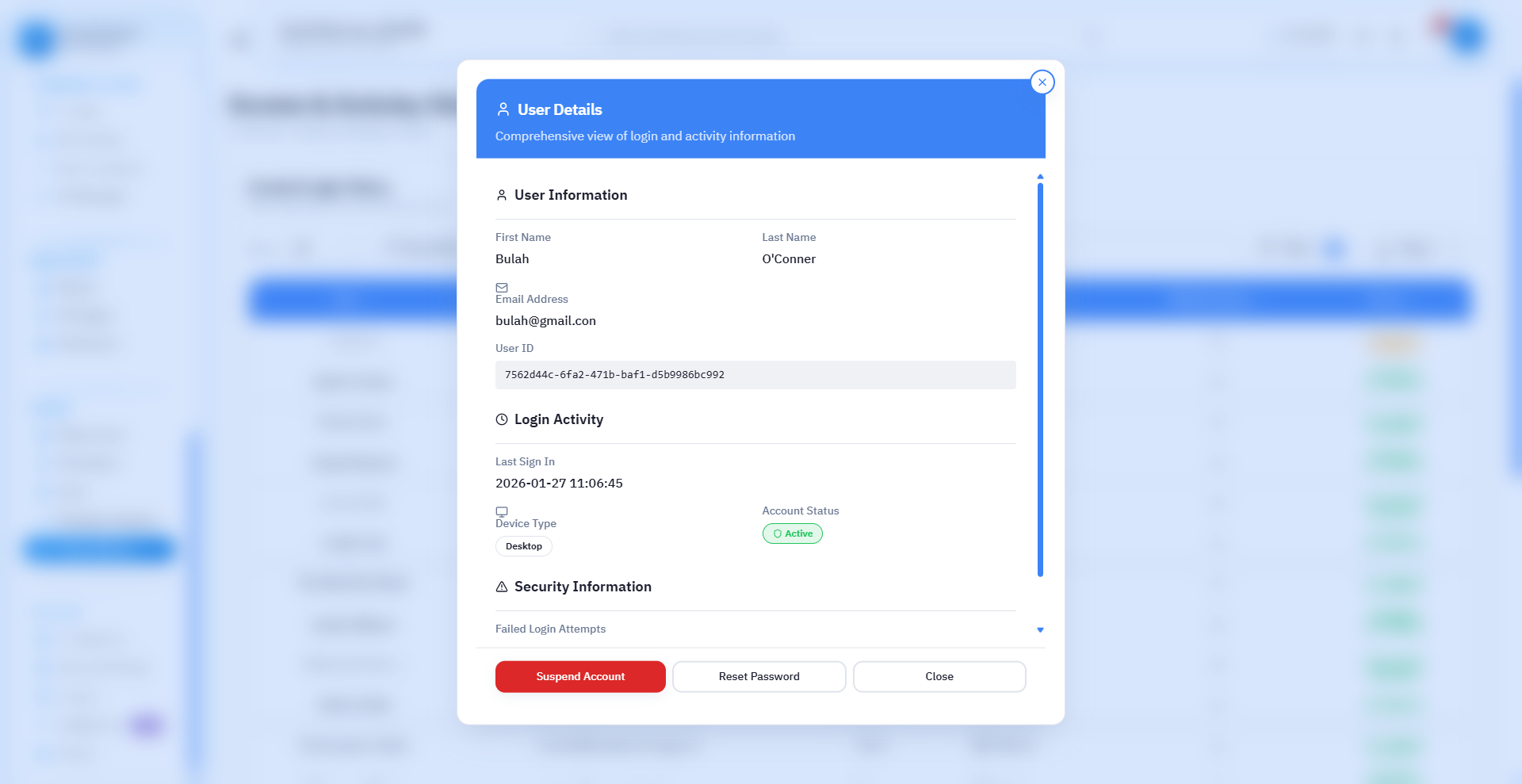
6. Status
| Status | Meaning |
|---|---|
| 🟢 Activated | User is allowed to log in |
| ⚪ Not Activated | Account exists but is frozen |
| 🔴 Suspended | Account was manually suspended by management |
This tool is especially important when:
- Terminating employee service: Suspend account
- Preventing unauthorized person from logging in: Protect system
- Suspending visitor and trainee accounts: Manage accounts
Account status determines whether user can log into system or not.
Search Tools and Filters
As company grows, need for powerful search tools increases.
Page includes professional tools to manage thousands of records:
1. Smart Search
Search by name, email, device, or status.
2. Filters
- Filter by device type: Desktop, Mobile, Tablet
- Filter by status: Activated, Not Activated, Suspended
- Filter users with failed attempts only: Detect problems
- Filter by login date: By time period
3. Export
You can export complete log in formats:
- Excel: Excel file
- CSV: CSV file
To submit to:
- Cybersecurity: For security analysis
- Legal Management: For compliance
- IT Department: For technical support
Using filters and search helps quickly find required records.
How Does Page Link to Rest of System?
Login log page is not a separate page… it is part of integrated system:
Links with:
- Users: To activate and suspend accounts
- Permissions: Know who has which permission
- Departments: Analyze each department's activity
- Notifications: Send alert for unusual login attempts
- Security and Linking: Protect system from unauthorized access
Integration with other systems ensures comprehensive monitoring and high security.
Real Usage Scenarios
1. Suspected Hacking
User has 12 failed attempts within 5 minutes → account is suspended immediately.
Repeated failed attempts in short time indicate potential hacking attempt.
2. Employee Not Using System
Last login 3 months ago → contact them or provide training.
3. Change in Login Behavior
Employee suddenly logs in from unknown new device → verify reason.
Login from unusual devices may indicate security problems or behavior change.
4. Terminating Employee
Account is suspended and ensured they cannot log in again.
Suspending terminated employee accounts ensures system security.
Types of Records
1. Successful Login Records
- Successful login: Normal login
- Time and date: Login time
- Device used: Device type
2. Failed Attempt Records
- Failed login attempt: Login failure
- Number of attempts: Repetition
- Reason: (Wrong password, unactivated account)
3. Activity Records
- Activities within system: Operations
- Modifications: Changes
- Page access: Pages used
Different record types provide comprehensive view of user activity.
Integration with Other Systems
Login & Activity Log system integrates with:
1. Users System
Linking records to employees.
2. Security System
Detecting security threats.
3. Notifications System
Sending alerts for suspicious activities.
4. Reports System
Creating security reports.
5. Compliance System
Supporting legal compliance.
Integration with other systems ensures comprehensive system security.
Best Practices
1. Periodic Review
Review records regularly to detect problems.
2. Follow Up Failed Attempts
Follow up repeated failed attempts.
3. Analyze Patterns
Analyze login patterns to detect abnormal behavior.
4. Save Records
Save important records for reference.
5. Set Up Alerts
Set up alerts for suspicious activities.
Applying best practices ensures high security and comprehensive system protection.
Additional Examples
Example 1: Detect Hacking Attempt
Record Shows: "Employee has 20 failed attempts within 10 minutes from different devices"
Action:
- Suspend account immediately
- Notify security
- Investigate incident
Example 2: Follow Up Inactive Employees
Record Shows: "5 employees haven't logged into system for more than a month"
Action:
- Contact employees
- Provide additional training
- Review need for accounts
Example 3: Analyze Department Activity
Record Shows: "Sales department has highest daily login rate"
Action:
- Analyze reasons for high activity
- Apply successful models to other departments
These examples show how to use login log in different situations.
Comprehensive Summary
Login & Activity Log page allows monitoring all login operations within system, including user, login time, device used, and failed attempts. This page provides advanced level of protection and helps detect abnormal activities, support security compliance, and improve follow-up on user performance, making it an essential element in managing Human Resources system.