HR Messages
What is HR Messages Page?
It is an instant communication interface within the Human Resources system that allows employees and management to communicate easily and quickly, exactly like chat, but it is dedicated only to official correspondence and work-related discussions.
It aims to enhance internal communication, reduce time wasted in sending emails or meetings, and ensure messages reach employees directly within the system.
Using HR messages provides fast and effective communication between management and employees.
Importance of HR Messages in the System
1. Direct Communication Between Management and Employees
Without needing email, WhatsApp, or any external application.
2. Ensure Keeping Official Record of Conversations
Every message remains saved within the system and can be referenced later.
3. Speed in Response and Decision Making
Such as:
- Alert employee about meeting time: Instant notifications
- Request clarification: Quick inquiries
- Send urgent instructions: Instant directives
- Follow up on employee status or tasks: Continuous follow-up
4. Support Employees Faster
Without needing to go to Human Resources office.
5. Higher Privacy and Security
Conversations are closed within the system and secure, and don't need sharing phone number or personal account.
HR messages provide a safe and professional environment for internal communication.
Main HR Messages Page Explanation
The main image shows the complete chat interface and contains the following elements:
1. Conversation Area
The largest part of the page and contains messages sent between employee and Human Resources.
Features:
- Messages appear by time and date: Chronological order
- Each party's messages are distinguished by different color: Clear distinction
- Employee "status" is displayed: (Online – Offline)
Conversation area provides a clear and easy interface to follow conversations.
2. Employees List on the Right
The side menu contains:
- Each employee's name: Comprehensive list
- Employee status: (Online, Offline)
- Last message or last activity: Last update
- Ability to search for specific employee: Quick search
- New conversation button: Start conversation
This list makes it easy for Human Resources department to reach any employee quickly.
Side menu provides quick access to all employees.
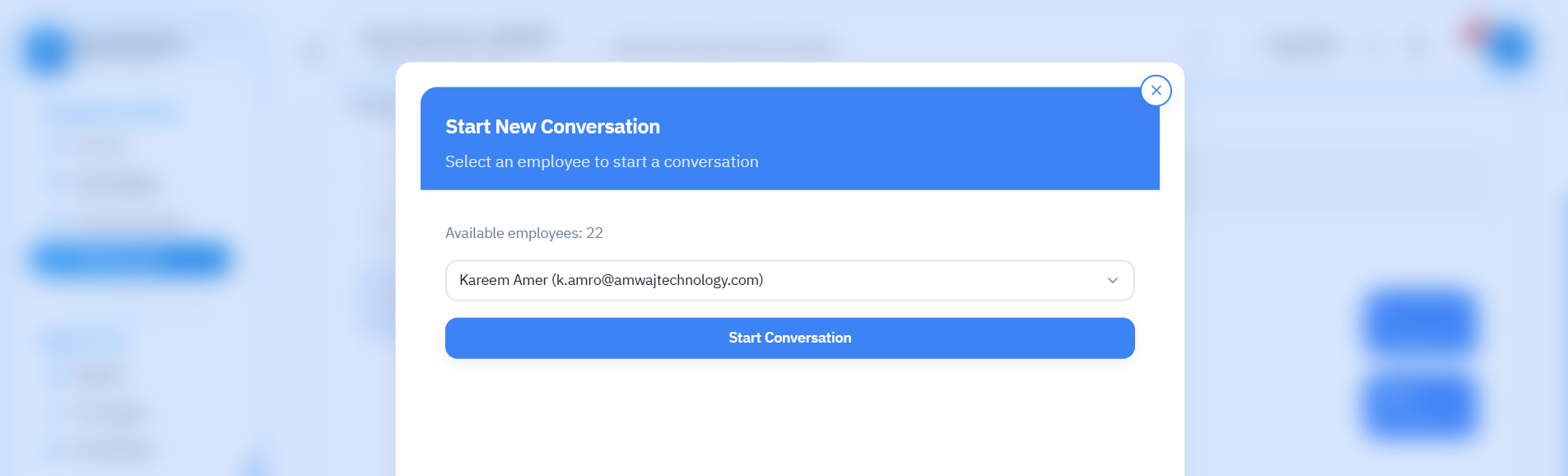
3. "New Conversation" Button
The second image shows the window for creating a new conversation.
Includes:
- Select employee from list: Easy selection
- Display number of available employees: Clear information
- Then start conversation with one click: Ease of use
4. Message Writing Box
At the bottom of chat page:
- Can write message: Enter text
- Can send it by clicking send button: Instant send
- Supports sending text messages only: To ensure professionalism of correspondence
Make sure to write clear and professional messages to ensure effective communication.
Features of HR Messages in the System
1. Easy and Professional Interface
Similar to popular applications like WhatsApp and Telegram but in a formal manner.
2. Automatic Conversation Division by Employees
Each employee has a separate conversation.
3. Support Instant Communication
Employee sends message at the same moment and it appears to Human Resources immediately.
4. Display Employee Connection Status
- ⚫ Offline: Employee is not currently available
- 🟢 Online: Employee is available to respond
5. Record All Messages
For review when needed.
6. Quick Access to Old Messages
By scrolling up.
All these features make the messages system a powerful tool for internal communication.
How Does Employee Benefit from HR Messages?
Employee Can:
- Inquire about leave request: Follow up on requests
- Ask about work schedule: Schedule inquiries
- Request support for work-related problem: Solve problems
- Inquire about salary or allowances: Financial inquiries
- Get instant instructions: Quick directives
Using messages provides employees with a fast and easy way to communicate with Human Resources department.

Usage Steps Explanation – Step by Step
First: Start New Conversation
- Click "New Conversation": Open new window
- Employee selection window appears: Employees list
- Select employee from list: Easy selection
- Click "Start Conversation": Instant start
- His chat page will open: Conversation interface
Starting a new conversation is easy and quick and only needs a few clicks.
Second: Send Message to Employee
- Open employee name from list on right side of page: Select employee
- Write message in writing box: Enter text
- Click "Send": Instant send
- Message will appear immediately in conversation: Immediate display
Write clear and brief messages to ensure quick understanding.
Third: Follow Up on Employee Status
- If indicator is green: Employee is online and can respond now
- If indicator is gray: Employee is offline
Fourth: Manage Messages
- All conversations appear in list: Comprehensive display
- Can open any conversation and return to it anytime: Complete flexibility
- Conversations are ordered by last message: Automatic ordering
Keep record of important conversations for future reference.
Real Example from Images
💬 Message from Human Resources to Employee:
"We have a meeting tomorrow, please attend at the specified time"
💬 Employee Response:
"8 AM"
This example shows how to communicate quickly and effectively between Human Resources and employees.
Common Message Types
1. Inquiry Messages
- Inquiries about requests
- Inquiries about schedules
- Inquiries about policies
2. Instruction Messages
- Urgent instructions
- Administrative directives
- Important updates
3. Follow-up Messages
- Follow up on requests
- Follow up on tasks
- Follow up on attendance
4. Alert Messages
- Schedule alerts
- Important alerts
- Urgent notifications
Use different message types as needed to ensure effective communication.
Conversation Management
1. Search for Conversation
Use search box to quickly find a specific conversation.
2. Order Conversations
Conversations are automatically ordered by last message.
3. Archive Conversations
Can save important conversations for future reference.
4. Delete Conversations
Can delete unimportant conversations when needed.
Managing conversations effectively helps maintain system and organization.
Integration with Other Systems
The HR messages system integrates with:
1. Employees System
Automatically fetch employee data.
2. Notifications System
Send notifications when new message is received.
3. Requests System
Link messages to employee requests.
4. Archive System
Save all conversations for reference.
Integration with other systems ensures smooth information flow.
Best Practices
1. Quick Response
Respond to messages as quickly as possible.
2. Clear and Brief Messages
Write clear messages focusing on important information.
3. Use Professional Language
Use professional and appropriate language in all messages.
4. Follow Up on Conversations
Follow up on important conversations regularly.
5. Save Important Conversations
Save important conversations for future reference.
Applying best practices ensures effective and professional communication.
Additional Examples
Example 2: Leave Request Inquiry
Employee: "Hello, I want to inquire about the status of the leave request I submitted last week"
Human Resources: "Hello, your request has been approved and leave will start from January 15"
Example 3: Clarification Request
Human Resources: "We would like to clarify the time of the upcoming meeting, can you confirm attendance?"
Employee: "Yes, I will attend at the specified time"
These examples show how to use messages in different situations.
Privacy and Security
1. Secure Conversations
All conversations are protected and encrypted within the system.
2. No Need to Share Personal Information
No need to share phone number or personal account.
3. Official Record
All conversations are saved as official record.
4. Limited Access
Only employee and Human Resources department can access the conversation.
Privacy and security are among the most important features of the messages system.
Section Summary
HR messages are an instant official communication channel within the system that allows employees and management to talk directly, follow up on inquiries, and send instructions quickly with high privacy. Through this system, employees can communicate with Human Resources department easily and quickly, and management can follow up on all conversations and manage internal communication effectively.